Managing agent context - Part 2: When the context window gets full
A closer look at what happens when an AI coding agent's context window fills up and the role of compaction.
In part 1, I broke down what goes into an agent’s context window. This part looks at what happens when that window starts filling up, why compaction exists, and why I try not to rely on it too much.
What happens when the context window fills up
In practice, an agent with a full context window can look a bit like a person dealing with information overload: it loses its focus and mixes things up. This is often called context rot.
It is not necessary to understand the underlying causes of it in order to manage an agent’s context effectively. However, if you are interested, I recommend reading up on the transformer architecture which powers all the major commercial frontier LLMs. As Anthropic explains it in their article on context engineering, LLMs have a limited “attention budget” for what information they consider when parsing input context. Increasing the available information to the model in its context means the attention to each input token gets spread thinner and thinner. This is due to how the transformer architecture works under the hood: it enables every token to interact with every other token, resulting in a quadratic increase in the amount of relationships. Eventually, some of the context tokens might not get enough “attention”, leading to the agent seemingly “forgetting” some information, even though in reality, the information is still present in its context window.
An interesting research article on context rot which demonstrates how LLM performance degrades with increasing context length can be found here: Context Rot: How Increasing Input Tokens Impacts LLM Performance.
In practical terms, you will notice the effects of your context window filling up by the agent seemingly ignoring or forgetting previous instructions that you gave earlier in the conversation. Or it will only follow them partly. You will then have to repeat your instructions (= increasing the “attention” the model pays to this information). Effectively, this will increase your overall token consumption and therefore also your monetary spend. Therefore, learning how to manage an agent’s context window has become a valuable skill.
What happens when the context window is completely full?
Depending on the model used, you will eventually reach the point where the model’s context window is fully exhausted. Current context window sizes vary greatly between models and the tool from which they are used. As of July 2026, both Anthropic and OpenAI list several models with 1M-token context windows, but availability can depend on the model, product surface, plan, and selected variant.
Note: Context window sizes may change at any point and not all models and cases are captured here.
Depending on the tool, hitting the effective context limit may trigger automatic context management, a compaction step, or an error that stops the session from continuing normally. This can happen in the middle of a task and leave half-done implementations. Both Codex and Claude Code will show a message when the context fills up. Below is a screenshot taken in Claude Code with a low context warning at 10% context remaining:

At this point, the two options to continue working are:
- Compaction
- Opening a new session
The latter will start with a fresh context window, so everything from the previous session will be lost.
Compaction replaces much of the conversation history with a summary, freeing space so you can continue the session. However, compaction has some pitfalls to consider, so let’s look at it in more detail.
Compaction
The goal of compaction is to extend the effective context length for long-running conversations. For smaller tasks within the default token limits, compaction might not be required. However, compaction can be useful even if there is still room for more tokens in the context window by preventing context rot. For bigger tasks, even a token limit of 1 million tokens can be filled up pretty quickly, which makes compaction much more relevant in order to avoid losing the context of the conversation.
Compaction itself requires the model to reason about what information to keep and what to discard. Therefore, it needs to have tokens available in the current context window to perform this reasoning.
In a simplified way, you can think of compaction to be similar to manually prompting the model to create a summary of the conversation, for example:
1
Create a summary of this conversation, including all the main points we discussed.
Then you take that summary over to a new session, provide it as starting context, and continue the conversation from there.
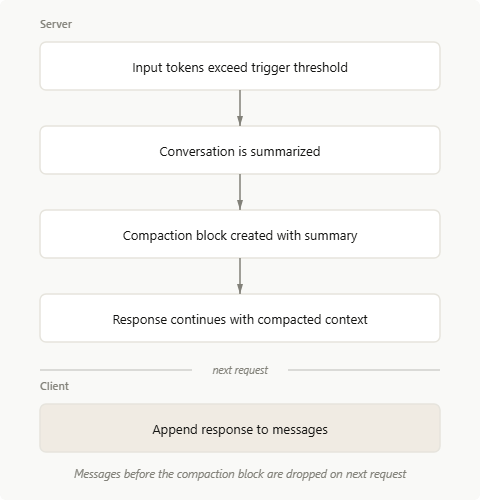
Source: Claude Platform Docs - Compaction
While the actual built-in compaction is more nuanced than this simplified example, you can already see the problem: some of the instructions and details you provided to the model in the previous conversation will get lost.
In Claude Code and Codex, compaction can be triggered in one of two ways:
- automatically when approaching the context window limit (if enabled),
- manually by typing the
/compactcommand.
There are some important differences between these so let’s look at each separately.
Auto-compaction
In part 1 of this series I have explained the compact buffer which is listed as one of the items in the /context menu within Claude Code. Codex also has a compact buffer, but it does not expose the exact size in a menu like Claude Code. Auto-compaction will trigger a compaction operation when the remaining context window size is less than or equal to the tokens reserved for compaction through the compact buffer. It is enabled by default, but can be turned off through the tool settings.
Manual compaction
Compaction can also be triggered manually by typing /compact. This will initiate a standard compaction where the model will reason about what information to keep and what to discard. This command also allows custom instructions for the compaction. I find this to be much better than relying on the automatic compaction, as it makes it possible to instruct the model on what information to keep. For example: /compact focus on the current implementation plan, files to be touched, decisions made and why, blockers, and remaining tasks
Micro-compaction
Micro-compaction is another type of compaction an agent can use to trim output and improve token efficiency. Micro-compaction is used to clear tool call outputs from tools such as Read, Bash, Grep and Glob which can use a considerable amount of tokens. Micro-compaction will identify old tool call outputs which are no longer immediately relevant to the current work being performed, write them to disk and keep only a reference to them in the context window. This means that those tool calls are still available in case they are required for any work or for auditing and other purposes.
Compared to regular compaction which changes the content of the context window by summarizing and rewriting information, micro-compaction works more like a cache which helps keep the main context window lean.
Practical context management tips
Here are the context-management habits I currently use in my agent sessions.
Avoid compaction in general
I try to avoid compaction as much as possible because I have often had important context be missing after compaction. Instead, I use one of three ways to handle longer tasks:
- Split the task into smaller sub-tasks, record them in a Markdown file, and have the agent work through them one by one. Between sub-tasks, use
/clearor start a new session. - Use sub-agents to perform sub-tasks with the main agent acting as the orchestrator,
- Manually prompt the agent to summarize the current status and open tasks for use in a new session.
I describe the Markdown-based project workflow I currently use in more detail in a separate article.
Generally, I ask for a handoff summary as soon as the tool starts warning me that context is running low. Depending on the status of work at that point, I might even interrupt the agent and force it to give me that summary so that I do not risk losing my progress due to the context window being full. I recommend including the following points in the summary:
- current goal,
- which files are used,
- decisions made with justification,
- completed actions,
- open actions,
- any issues discovered.
Then take the output summary and paste it into a new or cleared session.
Turn off auto-compact
Because I try to avoid built-in compaction, I usually turn off auto-compact, so I do not reserve tokens for the compaction buffer and can use a larger effective context window. However, I would only do this if you are disciplined about creating handoff summaries before the window gets too full. Otherwise, auto-compaction is probably the safer default.
Create custom skills
Skills are useful because the short description can help the agent decide when the skill is relevant, while the full instructions only load when the skill is invoked. Therefore, I highly recommend creating skills to store fixed workflows.
Use separate files for specific guidelines, preferences etc.
Instead of putting all information into the AGENTS.md / CLAUDE.md, I create separate Markdown files for instructions on coding style, documentation templates, and specific workflows in a /docs folder. Then, in my AGENTS.md / CLAUDE.md, I will just note down which guidelines are available, when to access them, and where to find them. This makes it so that my agent will only load that content when it is actually required. For example, if I do not work on coding tasks, I do not need my agent to know my coding style and preferences.
Conclusion
Understanding what to include and what to exclude in your agent’s context window is an essential skill worth practicing in order to improve output quality and token efficiency. The goal is to provide the agent with all the details required to perform its job, while excluding noisy details that are not relevant to the specific task.